
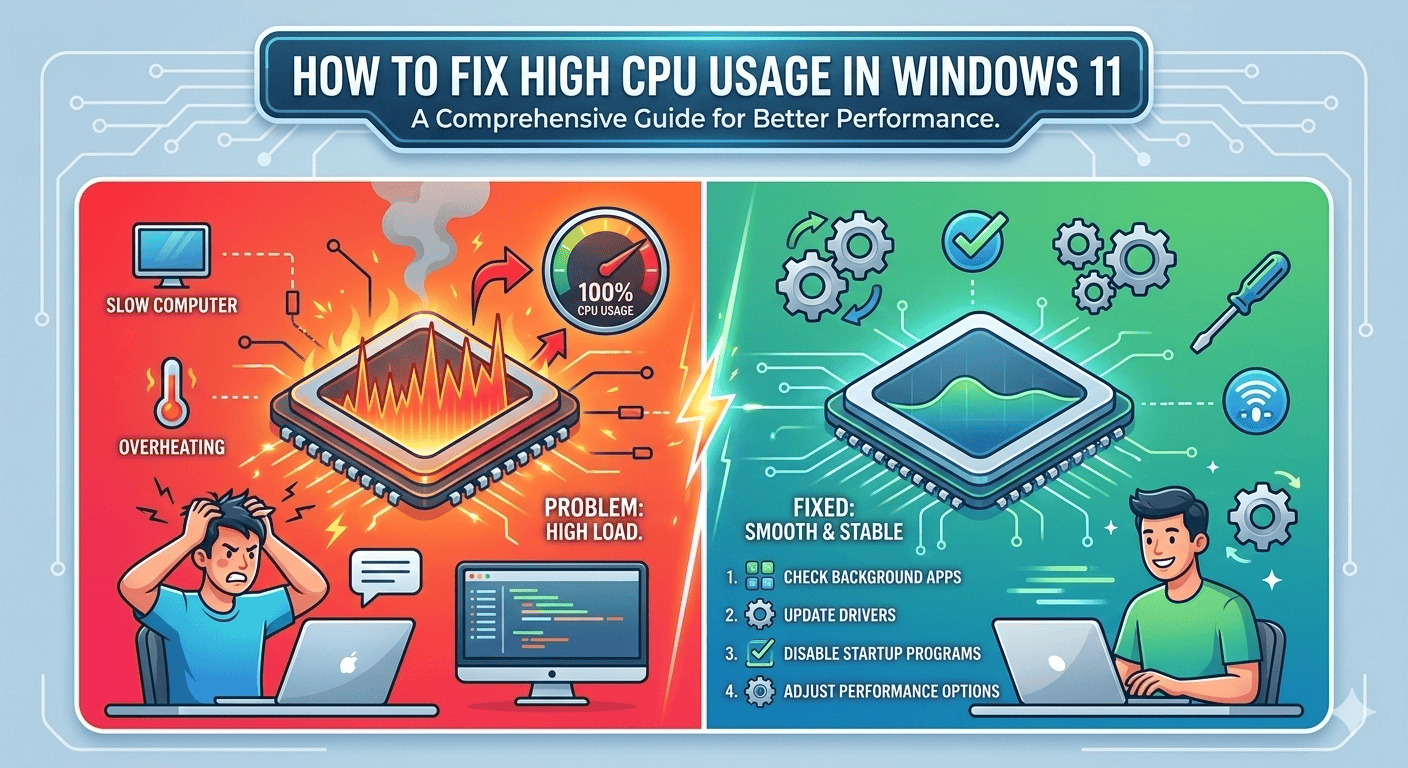
How to Fix High CPU Usage in Windows 11


Related Posts
Best Free Chrome Extensions for Productivity

How to Make Your Laptop Battery Last Longer

How to Fix “No Internet, Secured” Error on Windows

How to Clear Cache on Any Browser (Step-by-Step Guide)
Introduction
If you’re trying to fix high CPU usage in Windows 11, you’re probably dealing with a slow computer, overheating issues, or loud fan noise. High CPU usage can make even a powerful PC feel sluggish.
Why WordPress Websites Become Slow
Some common reasons include:
- Heavy themes
- Too many plugins
- Large image files
- Poor hosting
- No caching
1. Fix High CPU Usage in Windows 11 Using Task Manager
First, press:
- Ctrl + Shift + Esc
- Open Task Manager and check which process is using the most CPU.
- If a specific app is consuming excessive resources:
- Right-click it
- Select “End Task”
This instantly reduces CPU load.
For official guidance, you can check Microsoft’s support page
2. Disable Startup Programs
To disable them:
- Open Task Manager
- Click “Startup” tab
- Disable unnecessary programs
This improves boot time and reduces background CPU strain.
3. Run Windows Update
Go to:
- Settings → Windows Update → Check for updates
- Installing updates can help fix high CPU usage in Windows 11 if the issue is system-related.
4. Scan for Malware
- Viruses and hidden crypto-mining software can heavily use CPU.
- Run Windows Security or a trusted antivirus tool.
- If your internet is also slow, read our guide on How to Fix Slow Internet Connection at Home (Easy Solutions).
5. Disable Background Apps
Go to:
- Settings → Apps → Installed Apps
- Turn off background permissions for unnecessary apps.
6. Adjust Power Settings
Switch to Balanced mode:
- Control Panel → Power Options → Choose Balanced
- This reduces unnecessary CPU spikes.
7. Check Windows Search Indexing
Search indexing sometimes consumes high CPU.
Press:
- Windows + R
- Type: services.msc
Find “Windows Search” and restart the service.
8. Update Drivers
- Outdated drivers can cause system instability.
- Visit your device manufacturer’s website or use Device Manager to update drivers.
- For browser-related issues, see our guide on How to Speed Up Google Chrome Browser.
9. Reset or Reinstall Windows (Last Option)
Go to:
- Settings → System → Recovery → Reset this PC
Use this only as a final solution.
Why High CPU Usage Happens
Common causes include:
- Background apps
- Malware
- Outdated drivers
- Windows bugs
- Startup overload
Understanding the root cause helps permanently fix high CPU usage in Windows 11.
Additional Tips to Fix High CPU Usage in Windows 11
Another useful step is clearing temporary system files. Windows stores many temporary files that can slow down your computer over time. To remove them, open the Run dialog by pressing Windows + R, type temp, and delete unnecessary files inside the folder. This simple cleanup often improves overall performance.
You should also monitor background services that may restart automatically. Some software installs services that continue running even when the application is closed. Reviewing these services periodically can prevent unnecessary CPU usage.
By following these additional steps, many users are able to fix high CPU usage in Windows 11 and keep their systems running smoothly.
Final Thoughts
Most users solve the issue within minutes.