
How to Fix WhatsApp Not Sending Messages
April 16, 2026
0
Related Posts

How to get a virtual USA phone number on cheap price.
May 8, 2026
Introduction Getting a cheap virtual USA phone number is easier than ever. Whether you need it for business, online verification, or privacy, virtual numbers can help you stay connected without...
How to Protect Your Phone from Hackers
April 16, 2026
Introduction Learning how to protect your phone from hackers is very important in today’s digital world. Smartphones store personal data, passwords, and financial information. If your phone gets hacked, you...

Best Free Chrome Extensions for Productivity
January 15, 2026
Introduction Best free Chrome extensions for productivity can completely change the way you work online. Whether you’re writing emails, studying, browsing websites, or managing tasks, the right extensions help you...

How to Make Your Laptop Battery Last Longer
January 15, 2026
Introduction How to make your laptop battery last longer is a question many users ask when their device starts losing charge too quickly. Whether you use a laptop for work,...
Introduction
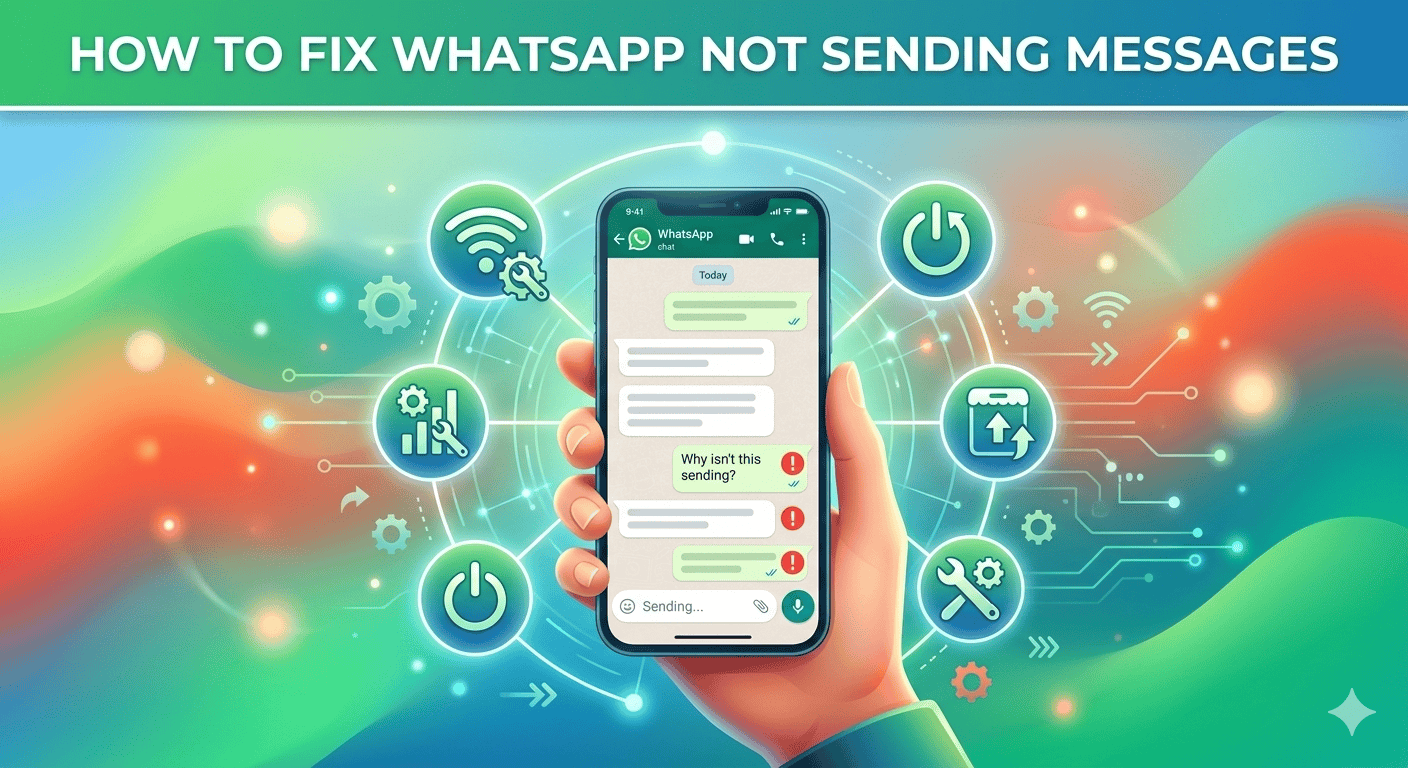
Facing the WhatsApp not sending messages problem can be frustrating, especially when you need to communicate urgently.
This issue usually happens due to internet problems, app errors, or incorrect settings. The good news is that you can fix WhatsApp not sending messages using simple steps.
Why WhatsApp Is Not Sending Messages
- There are several reasons why WhatsApp may stop sending messages.
- These include poor internet connection, outdated app version, or server issues.
- Understanding the cause can help you fix the problem faster.
1. Check Your Internet Connection
A weak or unstable connection is the most common reason for WhatsApp not sending messages.
Try:
- Switching between Wi-Fi and mobile data
- Restarting your router
- Turning airplane mode ON/OFF
You can also read:
How to Fix Slow Internet Connection at Home
2. Restart Your Phone
- Restarting clears temporary glitches.
- This simple step often fixes WhatsApp not sending messages instantly.
3. Check WhatsApp Server Status
- Sometimes the issue is not on your side.
- You can check server status using DownDetector
If WhatsApp servers are down, you need to wait until the issue is resolved.
4. Update WhatsApp
- Using an outdated version can cause problems.
- Go to the app store and update WhatsApp to the latest version.
- This helps fix bugs and improves performance.
5. Clear Cache (Android Users)
Cache files can become corrupted.
Go to:
- Settings → Apps → WhatsApp → Storage → Clear Cache
- This can fix WhatsApp not sending messages without deleting your chats.
You may also find helpful:
How to Clear Cache on Any Browser
6. Disable Data Restrictions
- Sometimes background data is restricted.
- Make sure WhatsApp has permission to use mobile data and Wi-Fi.
7. Check Date and Time Settings
- Incorrect date and time settings can cause syncing issues.
- Set your phone to automatic date and time.
8. Reinstall WhatsApp
- If nothing works, reinstall the app.
- Make sure to backup your chats before uninstalling.
9. Check Blocked Contacts
- If messages are not sending to a specific person, check if they are blocked.
- Unblock them if necessary.
For official help, visit WhatsApp support.
Common Mistakes to Avoid
- Many users panic and uninstall WhatsApp immediately.
- This can cause data loss if backup is not available.
- Ignoring internet issues is another common mistake.
- Always check connectivity before trying advanced fixes.
- Also, avoid installing modified or unofficial versions of WhatsApp.
- These can create security and performance issues.
Extra Tips to Fix WhatsApp Issues
- To avoid WhatsApp not sending messages in the future, keep your app updated regularly.
- Avoid using too many background apps, as they can slow down performance.
- You should also restart your phone occasionally to clear temporary bugs.
- Maintaining good internet connectivity is key to smooth messaging.
When WhatsApp Messages Still Don’t Send
If you have tried all the basic solutions and WhatsApp is still not sending messages, there may be a deeper issue.
- Sometimes, your mobile network provider may be blocking certain services temporarily. In this case, switching to another network or contacting your provider can help.
- Another possible reason is low storage space on your phone. When your storage is almost full, apps may not function properly. Try deleting unnecessary files, photos, or apps to free up space.
- You should also check if your SIM card is working properly. Removing and reinserting the SIM card can sometimes fix network-related problems.
- In rare cases, your WhatsApp account might be temporarily restricted due to unusual activity. If this happens, wait for some time and avoid sending too many messages at once.
Final Thoughts
- The WhatsApp not sending messages issue is common but easy to fix.
- By following these simple steps, you can quickly solve the problem.
- Start with basic solutions like internet check and restart, then move to advanced fixes if needed.