
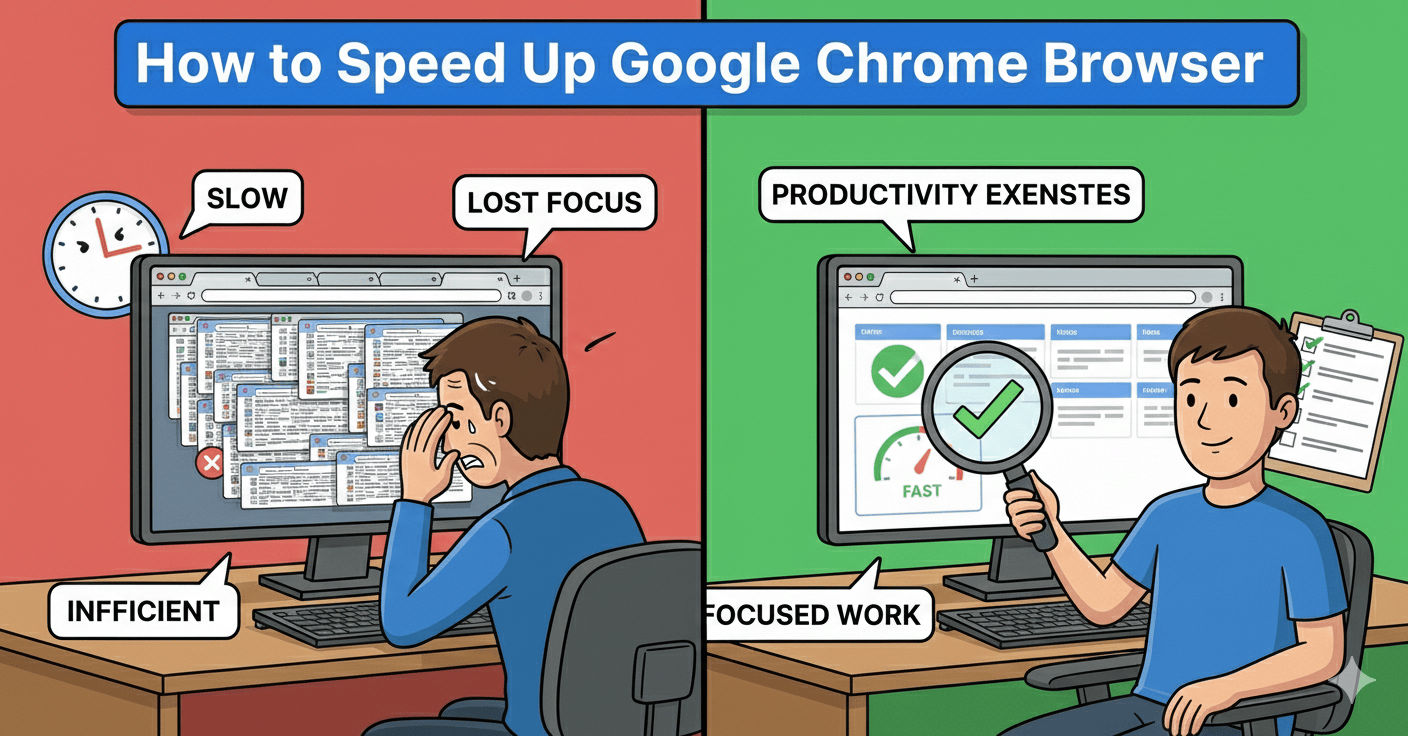
How to Speed Up Google Chrome Browser
Related Posts
Best Free Chrome Extensions for Productivity
How to Make Your Laptop Battery Last Longer

How to Fix “No Internet, Secured” Error on Windows
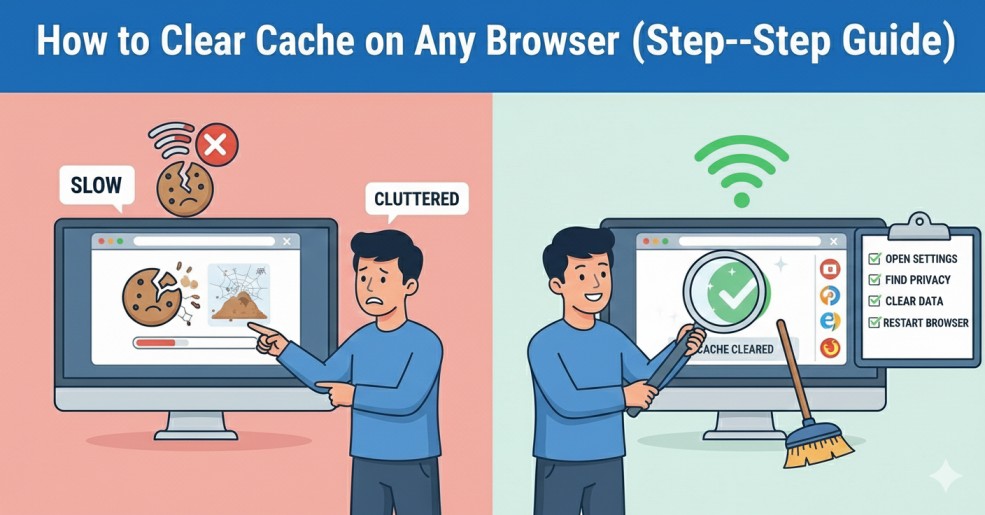
How to Clear Cache on Any Browser (Step-by-Step Guide)
Introduction
If you want to speed up Google Chrome browser, you’re not alone. Many users experience slow loading tabs, freezing pages, and high memory usage.
Why Does Google Chrome Become Slow?
There are several reasons why Chrome performance drops:
- Too many open tabs
- Heavy extensions
- Old cached data
- Malware or harmful software
- Outdated browser version
1. Clear Cache and Cookies
Go to:
- Settings → Privacy and Security → Clear Browsing Data.
- Select cached images and files, then clear them.
- Doing this regularly improves performance.
2. Disable Unnecessary Extensions
- Too many extensions consume memory.
- Type chrome://extensions/ in your browser.
- Disable extensions you don’t use regularly.
- Fewer extensions mean faster performance.
3. Update Google Chrome
Go to:
- Settings → About Chrome.
- Chrome will automatically check for updates.
You can also read Google’s official Chrome support page here:
4. Enable Hardware Acceleration
Hardware acceleration allows Chrome to use your computer’s GPU.
Go to:
- Settings → System → Enable “Use hardware acceleration when available”.
- Restart the browser.
5. Close Unnecessary Tabs
- Each tab uses memory.
- If you have 15–20 tabs open, Chrome will slow down.
- Close tabs you don’t need.
- You can bookmark important pages instead of keeping them open.
6. Reset Chrome Settings
Go to:
- Settings → Reset and clean up → Restore settings to original defaults.
7. Remove Malware
- Malware can slow down your browser.
- Run a system scan using Windows Security or trusted antivirus software.
You can also check Google’s safety guide
8. Use Chrome Cleanup Tool
Go to:
- Settings → Reset and clean up → Clean up computer.
9. Manage Startup Tabs
Go to:
- Settings → On Startup.
- Choose “Open the New Tab page” instead of reopening old tabs.
10. Improve Overall System Performance
- Sometimes the issue is not Chrome but your system.
- Free up disk space.
- Close background programs.
- Update your operating system.
If your internet is slow, that can also affect Chrome speed. You may also like our guide on how to fix slow internet connection at home
Download the latest version from the official website:
A fresh install can significantly speed up Google Chrome browser.
Common Mistakes That Make Chrome Slow
- Many users unknowingly slow down their browser.
- Installing too many extensions is one of the biggest mistakes.
- Ignoring updates also affects performance.
- Keeping dozens of tabs open all the time consumes memory.
- Downloading files from unsafe websites can install harmful software.
- Avoiding these mistakes will help you speed up Google Chrome browser easily.
👉You may also like our guide on improving laptop performance here:
Bonus Tip: Improve Overall System Performance
- Sometimes Chrome isn’t the only issue.
- If your computer is slow, Chrome will also lag.
👉You may also like our guide on improving laptop performance here:
Final Thoughts
- Learning how to speed up Google Chrome browser can save time and reduce frustration.
- Start with clearing cache and disabling extensions.
- Then move to updates and hardware acceleration.
- Small changes can make a big difference.