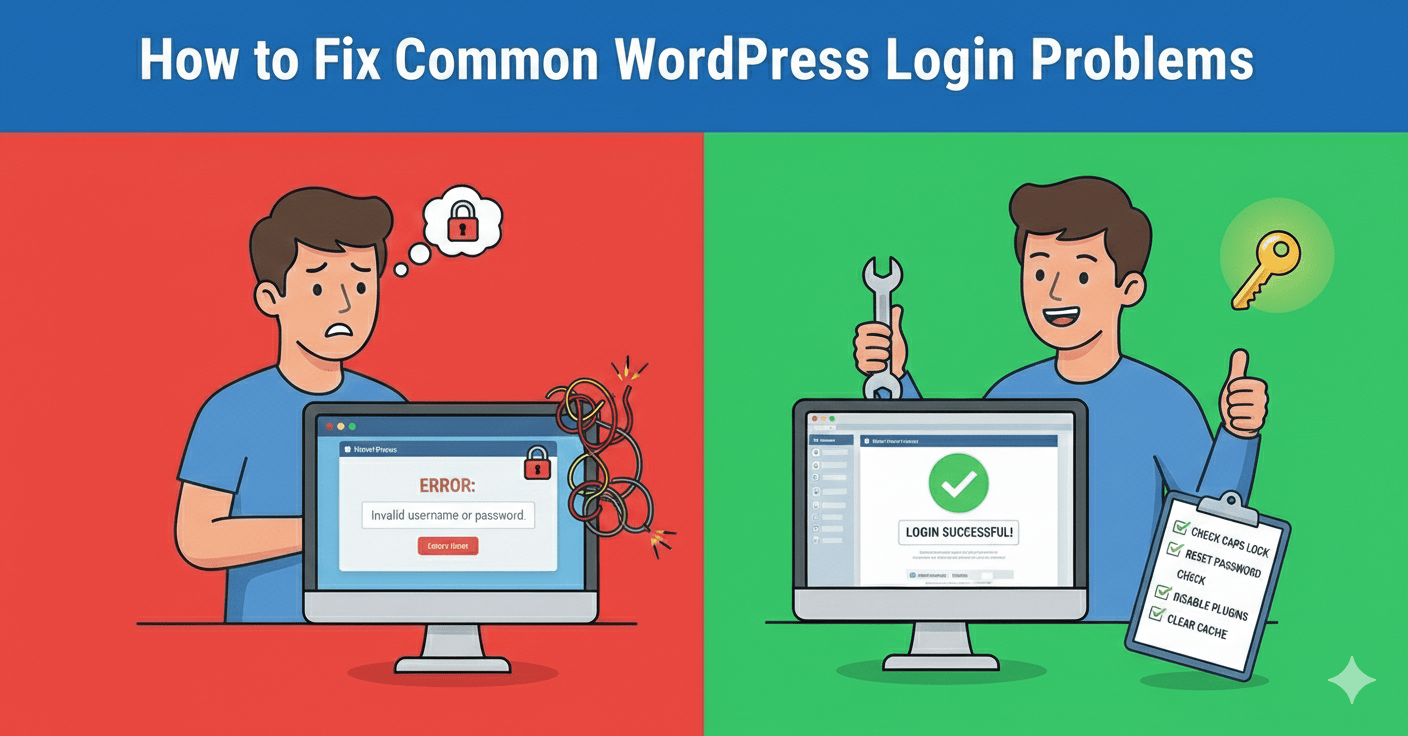
How to Fix Common WordPress Login Problems
Related Posts
How to Make Your Laptop Battery Last Longer
How to Fix “No Internet, Secured” Error on Windows
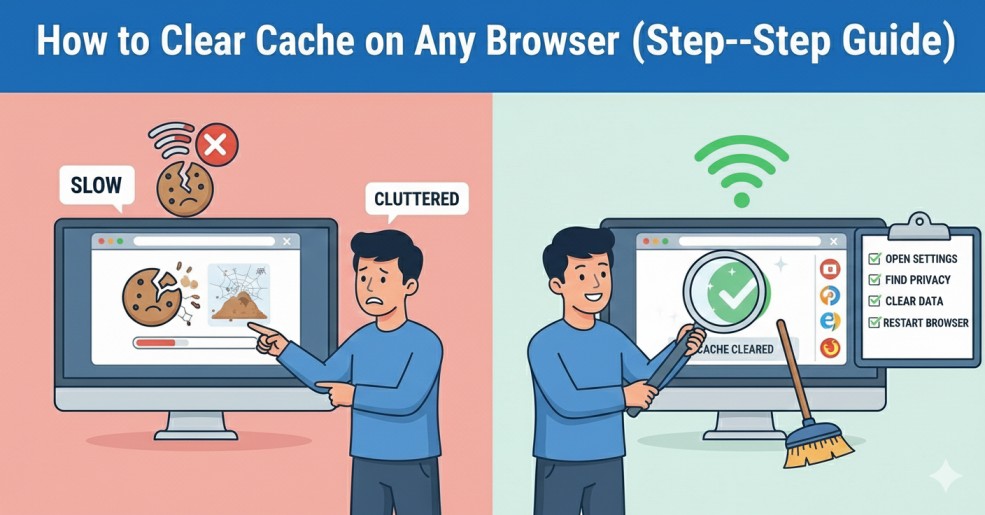
How to Clear Cache on Any Browser (Step-by-Step Guide)
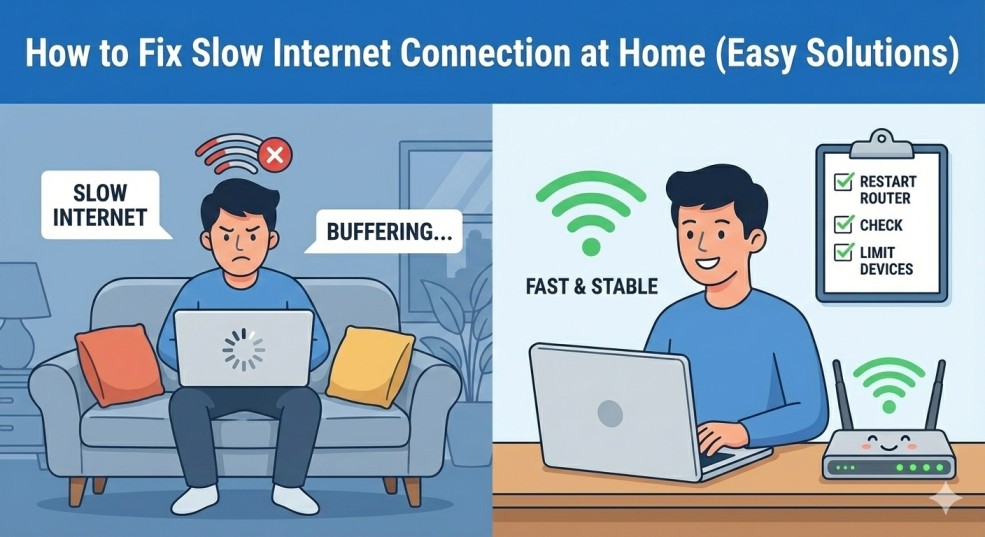
How to Fix Slow Internet Connection at Home (Easy Solutions)
Introduction
If you are trying to fix common WordPress login problems, you are not alone. Many website owners face login issues at some point. Sometimes you see a blank screen. Other times, the page keeps refreshing. In some cases, you simply cannot access the admin dashboard.
1. Incorrect Password Issues
Make sure:
- Caps Lock is off
- You are typing the correct username
- You are using the right email
2. Lost Password Recovery Not Working
- Sometimes password reset emails don’t arrive.
- Check your spam folder first.
- If you still don’t receive the email, you can reset the password through phpMyAdmin in your hosting panel.
👉 Official guide links:
- You can also read the official WordPress login guide
3. WordPress Login Page Keeps Refreshing
To fix this:
- Clear browser cache
- Clear cookies
- Try logging in using incognito mode
If your browser is slow, you may also read our guide on speeding up Google Chrome
4. Cookies Are Blocked Error
Sometimes you see this message:
- “Cookies are blocked or not supported by your browser.”
This error can be fixed by:
- Enabling cookies in your browser
- Clearing cache
- Checking site URL settings
5. White Screen After Login
This is usually caused by:
- Plugin conflicts
- Memory limit issues
- Theme errors
You may also read our detailed guide on fixing the WordPress White Screen of Death
Disabling plugins through FTP often solves this issue.
6. Plugin Conflict Issues
To fix this:
- Access your hosting file manager
- Go to wp-content
- Rename the plugins folder
- This disables all plugins temporarily.
Try logging in again.
- If it works, reactivate plugins one by one.
7. Theme Conflict Problems
- A corrupted theme can also cause login problems.
- Switch to a default WordPress theme like Twenty Twenty-Four.
- You can change themes via FTP if you cannot access the dashboard.
8. Locked Out Due to Security Plugin
- Security plugins sometimes block your IP address after multiple failed attempts.
- Login to your hosting control panel.
- Access your security plugin folder.
- Rename it to disable the plugin.
- After regaining access, adjust security settings carefully.
If you are improving website security, you may also read our guide on protecting your website from hackers
9. Database Connection Error
- If you see “Error Establishing a Database Connection,” your login will fail.
- Check your wp-config.php file.
- Make sure database name, username, and password are correct.
- You can also contact your hosting provider for assistance.
👉 Official guide links:
- WordPress database documentation is available
Preventing Future WordPress Login Problems
To avoid common WordPress login problems in the future:
- Keep WordPress updated
- Update plugins regularly
- Use strong passwords
- Install a reliable security plugin
- Backup your website weekly
Final Thoughts
Follow the steps above carefully:
- Start with basic checks like password reset and clearing cache.
- Then move to plugin and theme troubleshooting if needed.
- With proper maintenance and regular updates, you can avoid most WordPress login problems in the future.