How to Use Google Drive for Beginners
January 3, 2025
0
Related Posts
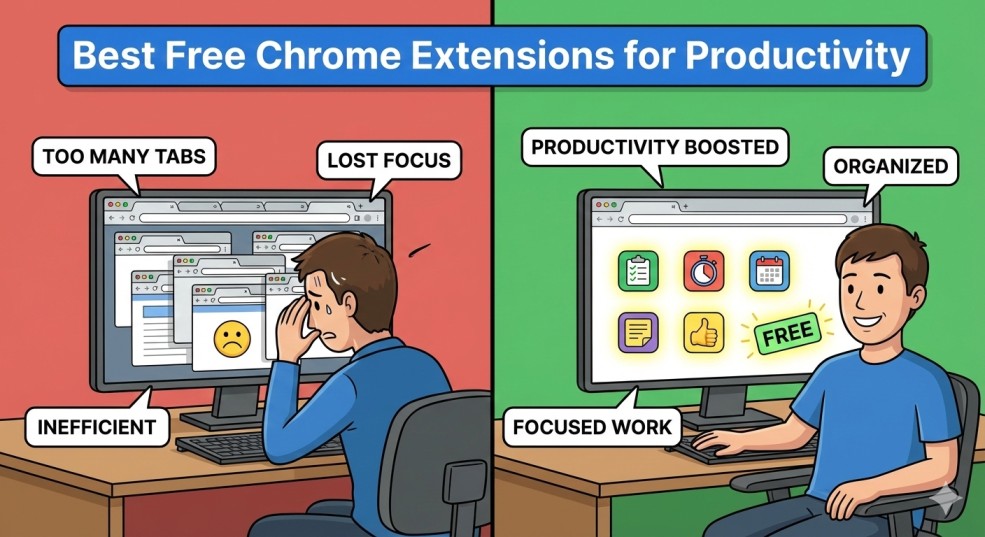
Best Free Chrome Extensions for Productivity
January 15, 2026
Introduction Best free Chrome extensions for productivity can completely change the way you work online. Whether you’re writing emails, studying, browsing websites, or managing tasks, the right extensions help you...
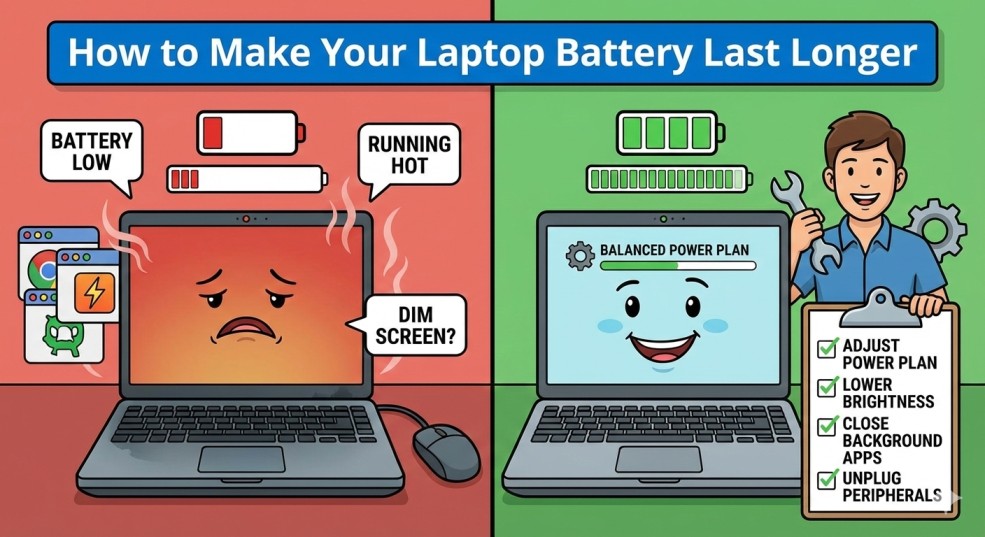
How to Make Your Laptop Battery Last Longer
January 15, 2026
Introduction How to make your laptop battery last longer is a question many users ask when their device starts losing charge too quickly. Whether you use a laptop for work,...
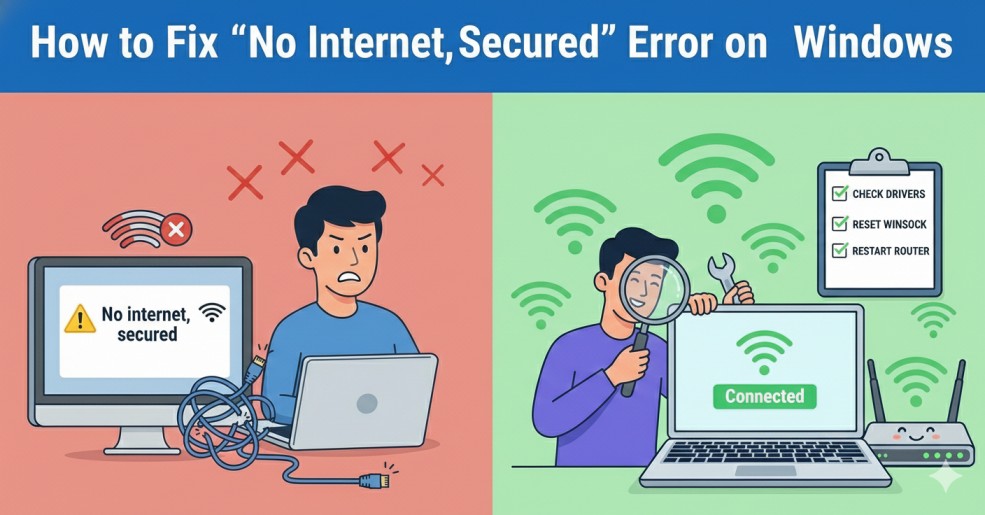
How to Fix “No Internet, Secured” Error on Windows
January 15, 2026
Introduction No Internet, Secured error on Windows appears when your computer connects to a Wi-Fi network successfully, but the internet does not work. You may see a Wi-Fi icon with...
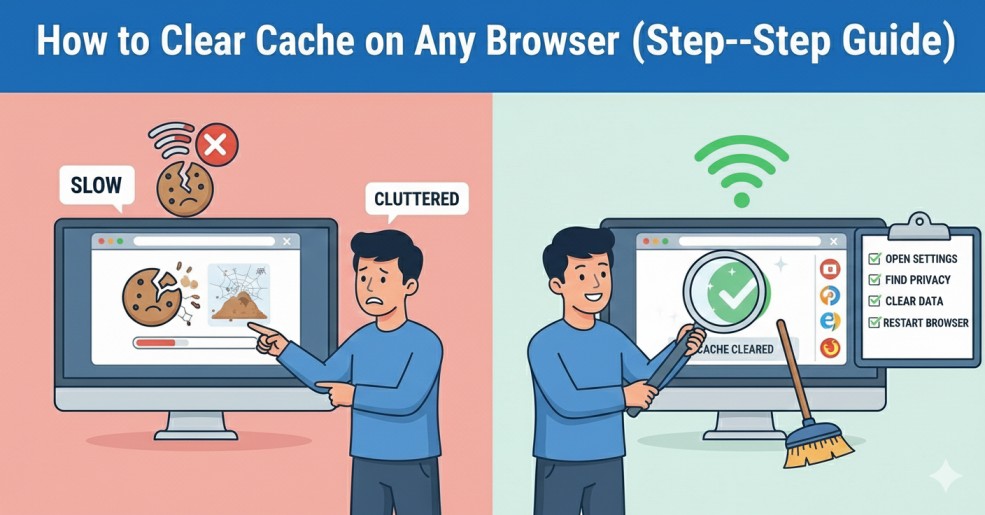
How to Clear Cache on Any Browser (Step-by-Step Guide)
January 13, 2026
Introduction Clear cache on any browser is one of the simplest ways to fix common browsing problems. Browser cache helps websites load faster by storing files locally, but over time...
Introduction
If you are wondering how to use Google Drive for beginners, you are in the right place. Google Drive is a free cloud storage service that allows you to store files online, access them from any device, and share them with others.
Many beginners feel confused when they open Google Drive for the first time. However, once you understand the basics, it becomes very easy to use.
In this guide, you will learn how to use Google Drive for beginners step by step.
Why WordPress Websites Become Slow
Some common reasons include:
- Heavy themes
- Too many plugins
- Large image files
- Poor hosting
- No caching
1. What is Google Drive?
- Google Drive is a cloud storage platform developed by Google.
- It allows users to store documents, images, videos, and other files online.
- You can access your files from a computer, tablet, or smartphone.
2. How to Create a Google Drive Account
- To understand how to use Google Drive for beginners, you first need a Google account.
- If you already use Gmail, you automatically have access to Google Drive.
- Once logged in, open Google Drive from the Google apps menu.
3. How to Upload Files to Google Drive
- Uploading files is simple.
- Click the “New” button on the left side.
- Select “File Upload”.
- Choose a file from your computer.
- Your file will upload automatically.
This is one of the most important steps in learning how to use Google Drive for beginners.
4. How to Create Folders in Google Drive
- Folders help keep your files organized.
- Click “New” and select “Folder”.
- Give your folder a name.
- Click “Create”.
- You can move files into folders by dragging and dropping them.
- Keeping files organized saves time later.
5. How to Share Files with Others
- One powerful feature of Google Drive is file sharing.
- Right-click on a file.
- Click “Get link”.
- Choose permission level:
- Viewer
- Commenter
- Editor
Copy the link and send it to the person.
If you want to improve online collaboration skills, you may also read our guide on using online productivity tools
6. How to Use Google Docs, Sheets, and Slides
Google Drive allows you to create documents directly.
Click “New” and choose:
- Google Docs
- Google Sheets
- Google Slides
These tools work online and save automatically.
You don’t need to install Microsoft Office.
- You can learn more about Google Workspace tools
7. How to Download Files from Google Drive
To download a file:
- Right-click the file.
- Click “Download”.
- The file will save to your device.
You can also download multiple files by selecting them and clicking download.
8. How to Organize Files Properly
- If you want to master how to use Google Drive for beginners, organization is key.
- Rename files clearly.
- Create separate folders for work, school, and personal files.
- Use color labels for important folders.
- Delete unnecessary files regularly.
- This keeps your Drive clean and easy to manage.
9. Google Drive Storage Limit
Google Drive offers 15GB of free storage.
This storage is shared between:
- Google Drive
- Gmail
- Google Photos
If you need more storage, you can upgrade through Google One.
10. Safety Tips for Beginners
- Security is important when using cloud storage.
- Never share sensitive files publicly.
- Use strong passwords.
- Enable two-step verification for your Google account.
- Avoid logging in on public computers.
Final Thoughts
- Learning how to use Google Drive for beginners is easier than it seems.
- Start with uploading files and creating folders.
- Then explore sharing and online document editing.
- With regular use, you will feel comfortable managing all your files online.
- Google Drive is a powerful tool for students, professionals, and business owners.
- Once you understand the basics, you can use it daily for storing and sharing important files.