
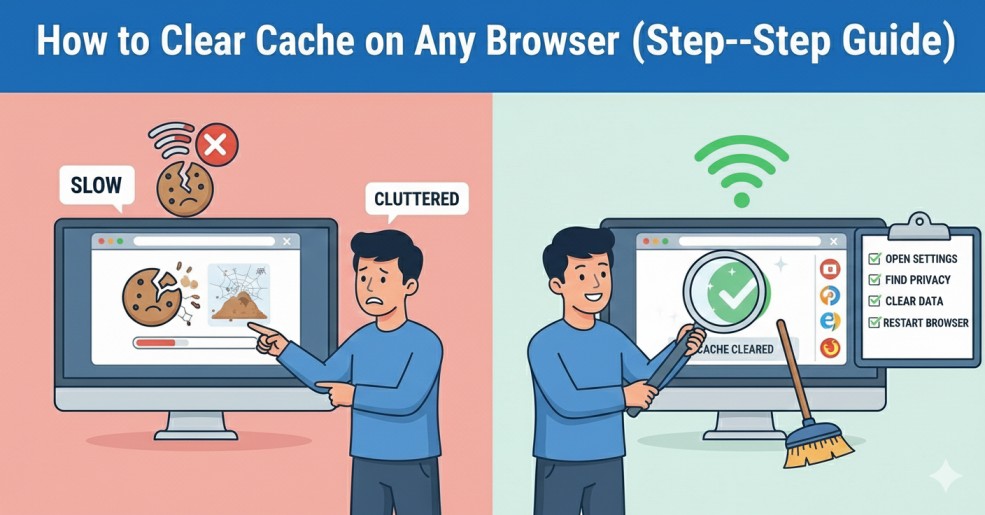
How to Clear Cache on Any Browser (Step-by-Step Guide)
Related Posts
How to Make Your Laptop Battery Last Longer

How to Fix “No Internet, Secured” Error on Windows

How to Fix Slow Internet Connection at Home (Easy Solutions)

How to Fix WordPress White Screen of Death (Beginner Guide)
Introduction
Clear cache on any browser is one of the simplest ways to fix common browsing problems. Browser cache helps websites load faster by storing files locally, but over time this data becomes outdated or corrupted. When that happens, websites may not load properly, pages may break, or login issues may appear.
Clearing cache removes old files and forces the browser to load fresh data. In this guide, you will learn how to clear cache on any browser using easy, step-by-step instructions that work for beginners.
What Is Browser Cache?
While cache improves speed, too much cached data can cause:
- Slow browsing
- Broken website layouts
- Login or form submission errors
Why You Should Clear Cache on Any Browser
You should clear cache on any browser if you notice:
- Websites not loading correctly
- Old content showing instead of updated pages
- Slow browser performance
- Login or session errors
How to Clear Cache on Google Chrome
To clear cache on Google Chrome, follow these steps:
- Open Chrome and click the three-dot menu
- Go to Settings
- Click Privacy and Security
- Select Clear browsing data
- Choose Cached images and files
- Click Clear data
This removes outdated files and improves browser speed.
👉 Official guide links:
How to Clear Cache on Mozilla Firefox
To clear cache on Firefox, do the following:
- Open Firefox and click the menu button
- Go to Settings
- Select Privacy & Security
- Scroll to Cookies and Site Data
- Click Clear Data
- Check Cached Web Content and confirm
👉 Official guide links:
How to Clear Cache on Microsoft Edge
- Open Edge
- Go to Settings
- Click Privacy, search, and services
- Choose Clear browsing data
- Select Cached images and files
- Click Clear now
👉 Official guide links:
How to Clear Cache on Safari
- Open Safari
- Go to Preferences
- Enable Develop Menu
- Click Develop → Empty Caches
Clearing browser cache is also helpful when websites do not update properly or show old versions of pages. Sometimes changes made on a website are not visible because the browser keeps loading stored files instead of fresh content. In such cases, clearing cache forces the browser to download the latest version of the website.
Cache issues are common after browser updates, system upgrades, or when switching between different networks. Users who frequently browse many websites may notice slower performance if cache is not cleared regularly. Removing cached files can free up storage space and improve overall browser responsiveness.
It is important to note that clearing cache does not delete saved passwords, bookmarks, or personal files. Only temporary website data is removed, making this process completely safe for regular users.
How Often Should You Clear Browser Cache?
For regular users:
- Once every 2–4 weeks is enough
For heavy users or developers:
- Once a week is recommended
Final Thoughts
Learning how to clear cache on any browser is a simple habit that keeps your browser fast and websites working properly. If you experience loading issues, outdated pages, or login problems, clearing cache should always be your first step. This method works on all major browsers and takes less than a minute.
If you want to improve your browsing experience further, you can also read our detailed guide on How to Fix Slow Internet Connection at Home.