
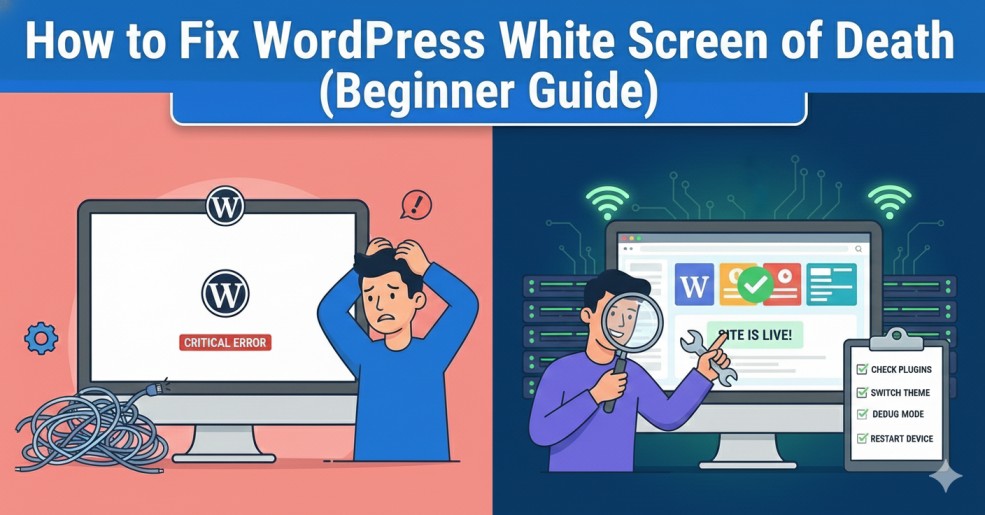
How to Fix WordPress White Screen of Death (Beginner Guide)
Related Posts
How to Make Your Laptop Battery Last Longer

How to Fix “No Internet, Secured” Error on Windows
How to Clear Cache on Any Browser (Step-by-Step Guide)
How to Fix Slow Internet Connection at Home (Easy Solutions)
Introduction
WordPress White Screen of Death is one of the most confusing issues for beginners because it shows a completely blank page without any error message. Your website suddenly stops loading, and you are left wondering what went wrong. While this issue looks scary, the good news is that it is usually caused by simple problems that can be fixed without expert help.
Common Causes of WordPress White Screen of Death
Before applying fixes, it’s important to understand what usually causes this issue:
- Plugin conflicts
- Theme compatibility problems
- PHP memory limit exhaustion
- Corrupted WordPress files
- Errors hidden due to disabled debugging
Step 1: Disable All WordPress Plugins
Plugins are the most common cause of the WordPress White Screen of Death.
How to disable plugins:
- Access your website using File Manager or FTP
- Go to the wp-content folder
- Rename the plugins folder to plugins-old
- This action disables all plugins at once.
Now refresh your website.
- If the site loads, one of the plugins is causing the issue
- Rename the folder back to plugins
- Enable plugins one by one to find the faulty plugin
Step 2: Switch to a Default WordPress Theme
If plugins are not the issue, your active theme may be causing the problem.
How to fix it:
- Go to wp-content/themes
- Rename your active theme folder
- WordPress will automatically switch to a default theme like Twenty Twenty-Four
Step 3: Increase PHP Memory Limit
Add this code to wp-config.php:
- define(‘WP_MEMORY_LIMIT’, ‘256M’);
Step 3: Increase PHP Memory Limit
Add this code to wp-config.php:
- define(‘WP_MEMORY_LIMIT’, ‘256M’);
Step 4: Enable WordPress Debug Mode
Add this line to wp-config.php:
- define(‘WP_DEBUG’, true);
- After enabling debug mode, reload your site.
- You may see error messages that point directly to the faulty file or plugin.
For more details, you can refer to the official:
Step 5: Clear Cache and CDN
If you are using a caching plugin or CDN, cached files may cause the white screen.
- Clear your WordPress cache
- Clear browser cache
- Purge CDN cache if applicable
This step is especially useful after updates or code changes.
You may also find it helpful to:
Step 6: Check for Corrupted WordPress Files
Fix method:
- Download a fresh copy of WordPress
- Replace wp-admin and wp-includes folders
- Do NOT overwrite wp-content
Step 7: Contact Hosting Support
If none of the above steps work, the issue may be server-related.
Hosting providers can:
- Check server error logs
- Fix PHP or permission issues
- Restore backups
Final Thoughts
The WordPress White Screen of Death may look alarming, but it is usually caused by plugin conflicts, theme issues, or memory limits. By following these step-by-step solutions calmly, you can fix the issue and restore your website without panic.